Self
The personal file: milestones, missteps, and a few lessons that took embarrassingly long to learn.
iPhone (17?) Air, One Month Later
I fear I am about to feel what iPhone Mini people feel.
A confession. After reading the announcements, I planned to upgrade from my iPhone 16 Pro Max to iPhone 17 Pro Max. It was a luxury move, with my less-than-full-day battery life as the polite excuse. By the time I went to preorder, my configuration was weeks out. So I bought iPhone Air instead, in my usual configuration: the newest color (Sky Blue), 512 GB.
This is my 9th iPhone. My favorite, until now, was iPhone 6 Plus. Despite its size, the comfort was unmatched. I kept it for three years, my longest streak. Every iPhone since has been a strong device; none felt quite like that one.
I'm happy to say the crown has been passed to iPhone Air.
The Air feels every bit as comfortable as phones used to feel, with 2025 internals inside. I had assumed I needed to step down from the Max line because my hand cramped during bedtime use. The issue wasn't size, though; it was the close cousin of size: weight.
Below is a chart of every iPhone's weight. Peaks are Pro Maxes, valleys are base models, color-coded by year. The base iPhone 15 weighs as much as a Pro from several years ago.
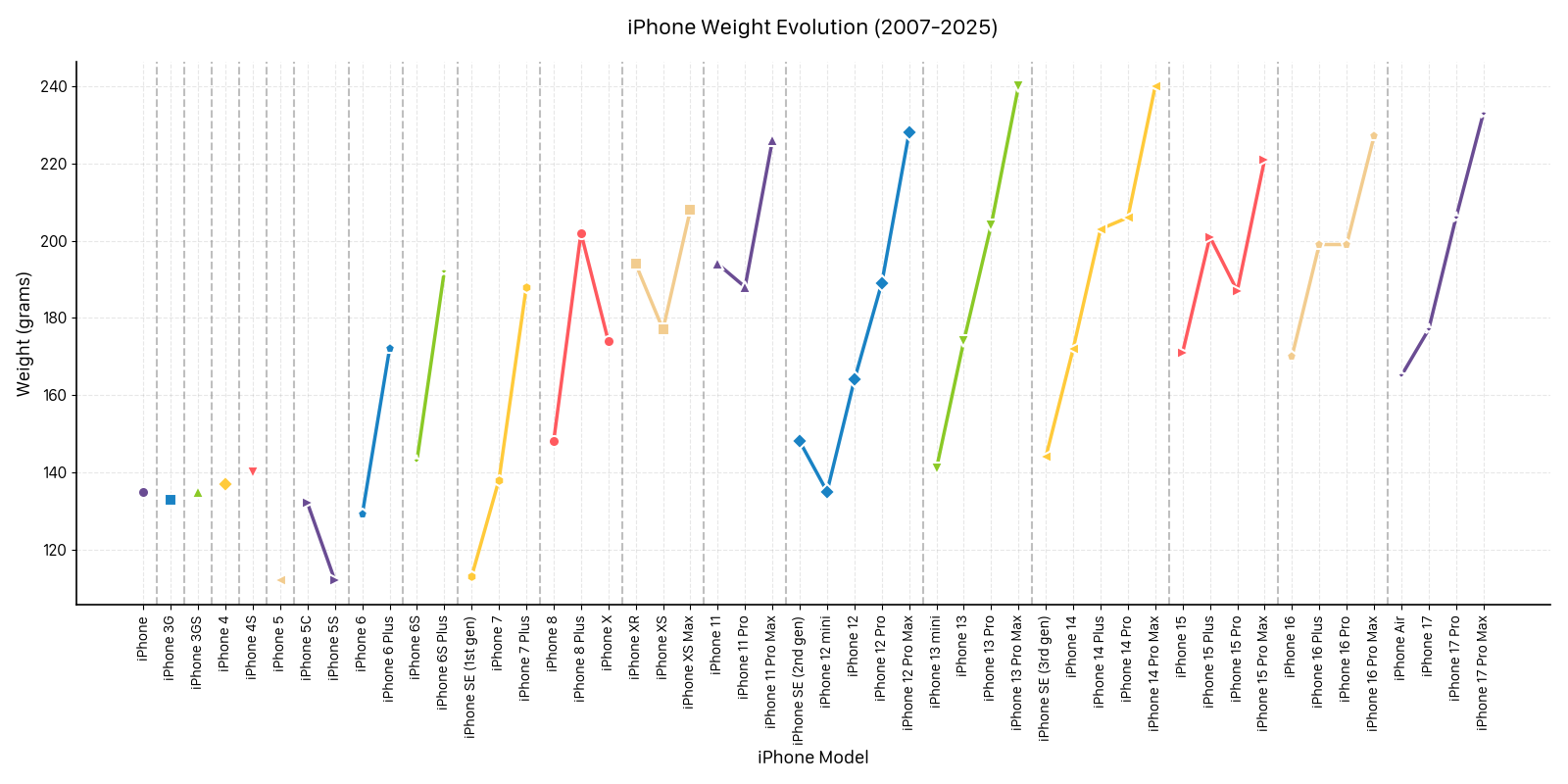
The trend is unlikely to reverse. Customers have consistently asked for more battery, better cameras, and louder speakers, and those upgrades come with mass. To make the Air, Apple chose a different point on the curve:
- Battery: 3,149 mAh (vs. 3,692 mAh on base, 4,252 mAh on Pro, 5,088 mAh on Pro Max)
- Camera: single rear lens, no telephoto or ultra-wide
- Speaker: mono via the earpiece. The bottom-firing driver is omitted.
These are the trade-offs the spec sheet shows. On paper, the Air reads like a phone of compromises. So why, after a month, am I keeping mine?
Because the spec sheet isn't how I use a phone.
My partner has an iPhone 12 Mini. Every time I pick it up, I think "too small for me." When I pick up the Pro Max, the weight asks for two hands or a surface; one-handed use is unstable. For my hand, the Pro line is comfortable for long sessions only with a case. The base iPhone hasn't fit my hand the way I'd hoped.
The Air is comfortable regardless of hand size. The screen is large enough to text on one-handed. It sits in a pocket without sagging. It's the first phone I've used caseless without immediately scratching it, a habit I'd given up after my iPhone 12 Pro's front glass cracked under normal wear.
I gave it a month before writing, to live with each trade-off:
- "Hard to pick up off a table": easy unless it's face-down.
- "Too thin to hold": most comfortable phone I've held, for my hands.
- Single camera: I reposition or hand the phone to my partner more often.
- Mono speaker: noticeable in showers and noisy kitchens; unnoticeable elsewhere because I'm usually wearing AirPods.
- Battery: real-world use requires charger logistics, but I'd been doing that since iPhone 8. Many owners online report battery comparable to iPhone 16 Pro in normal use.
Each trade-off is real. None mattered enough to undo the comfort gain.
I handed the phone to my partner, who has called every iPhone and Pixel I've passed her "heavy" or "huge," and she said, "wow, this is nice." Six years of feedback to the contrary, then one sentence the other way. That was the moment I was certain.
A few design choices, from a customer's perspective, where I think there's room to improve:
- Pricing. $999 puts Air $200 above the base and only $100 below the Pro. Many buyers will close that small gap to the Pro for the feature delta.
- Color palette. Sky Blue, Light Gold, Cloud White, Space Black: subtle and minimal. The palette reads as aspirational, which positions the phone as a niche device rather than mass-market.
- Marketing emphasis. Air's messaging leans on thinness. From my experience, the meaningful win is weight, not thickness, and weight is a more legible benefit to a casual buyer.
- Visibility. I haven't seen Air ads on billboards, TV, or in my online feeds. The phone has lived primarily on Apple's own surfaces.
Reports suggest Air's sales came in below targets, with some pushback on those numbers. Apple has discontinued past "fourth iPhone" experiments (Mini, Plus, SE), and Air may follow.
After a month, two conclusions:
- I'll wait for the next iteration of Air, unless it takes more than three years (the same patience I gave iPhone 6 Plus).
- I'll buy whatever Apple ships as the successor. One more camera, the second speaker, and that's enough.
A thought experiment: rotating a different "fourth slot" each year (Air, Fold, Mini) would let Apple test new form factors without committing to multi-year roadmaps. Not free, since separate molds and supply chains have real cost, but a way to keep the lineup varied for a small population of customers who care.
For now, iPhone Air is the phone I reach for. The first iPhone in a long time that I genuinely enjoy holding: quiet, unobtrusive, content to disappear into my pocket and stay out of my way until I need it.
%20Air%2C%20One%20Month%20Later)
Solo at Tahoe
1 tent, 13km hike, 1000 calorie breakfasts. No service, no pants, no worries.
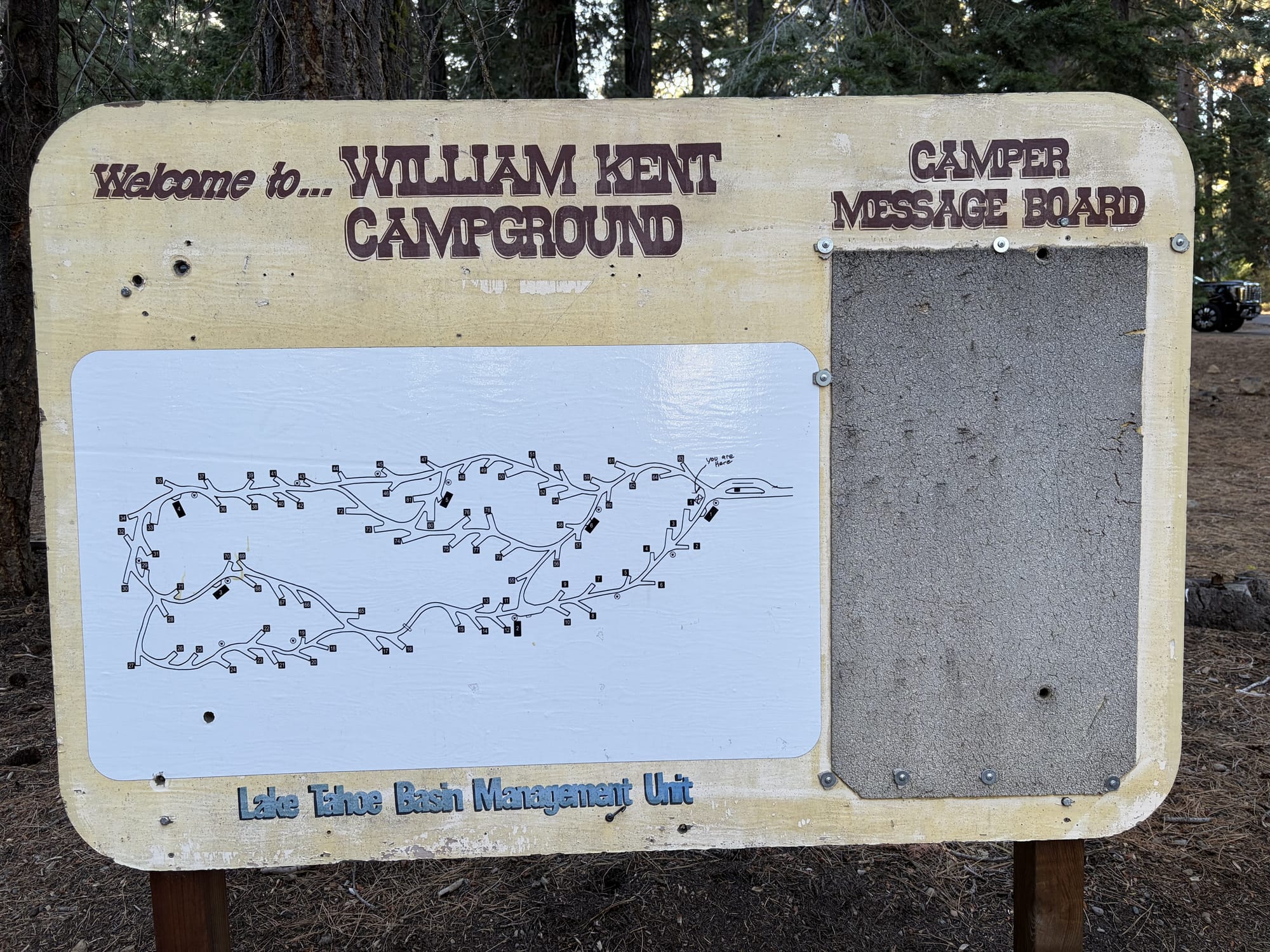
This weekend I had the pleasure of camping at William Kent Campground. I'd felt cooped up for a long while, and I needed to clear my head. Taylor and I had originally planned on going together, but we thought it would be more ideal for me to try camping by myself for the first time. We've been going consistently in the cooler months, and I felt more and more confident every time. Was I still nervous? You betcha.
After a day of packing and cooking (with Taylor helping me prep...), I was off. While it usually takes ~3.75 hours to get to Tahoe from our home, it's closer to ~4.25 hours with the Tesla, and in real conditions 4.5-5.5 hours with traffic (if not worse—thanks, Sacramento). I left at a cool 09:30 to arrive by 15:00, making an additional pit stop at a clothing store because my dumbass didn't pack pants. To Tahoe.
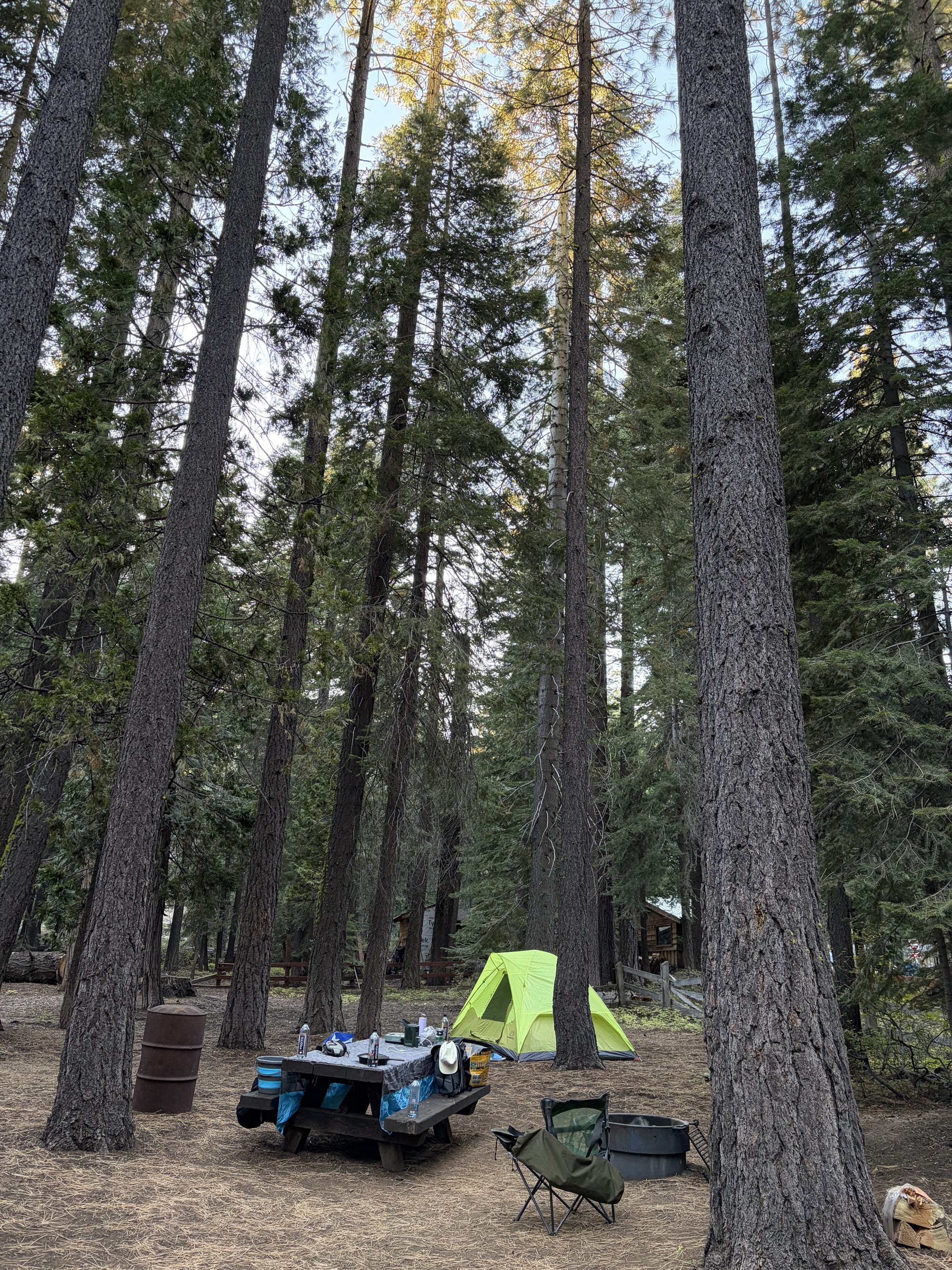
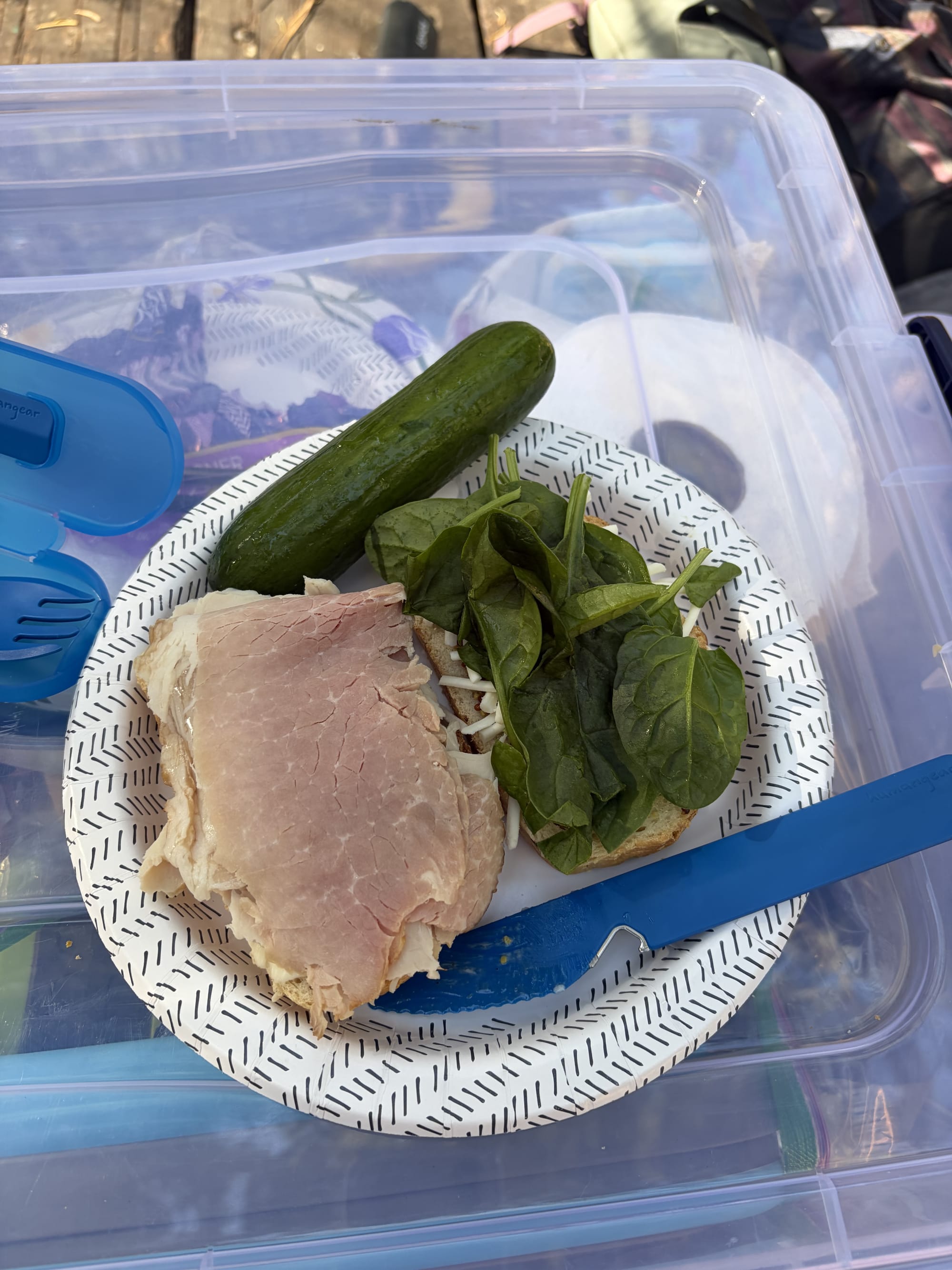
I got checked in, had my usual lunch sandwich (and cucumbers with a dab of salt), and then it was onto something much more difficult than driving 4.5 hours: pitching the tent solo. After many failed attempts and several swear words in several languages, it was a beauty. I got the rest of my site set up, and it too was a beauty.
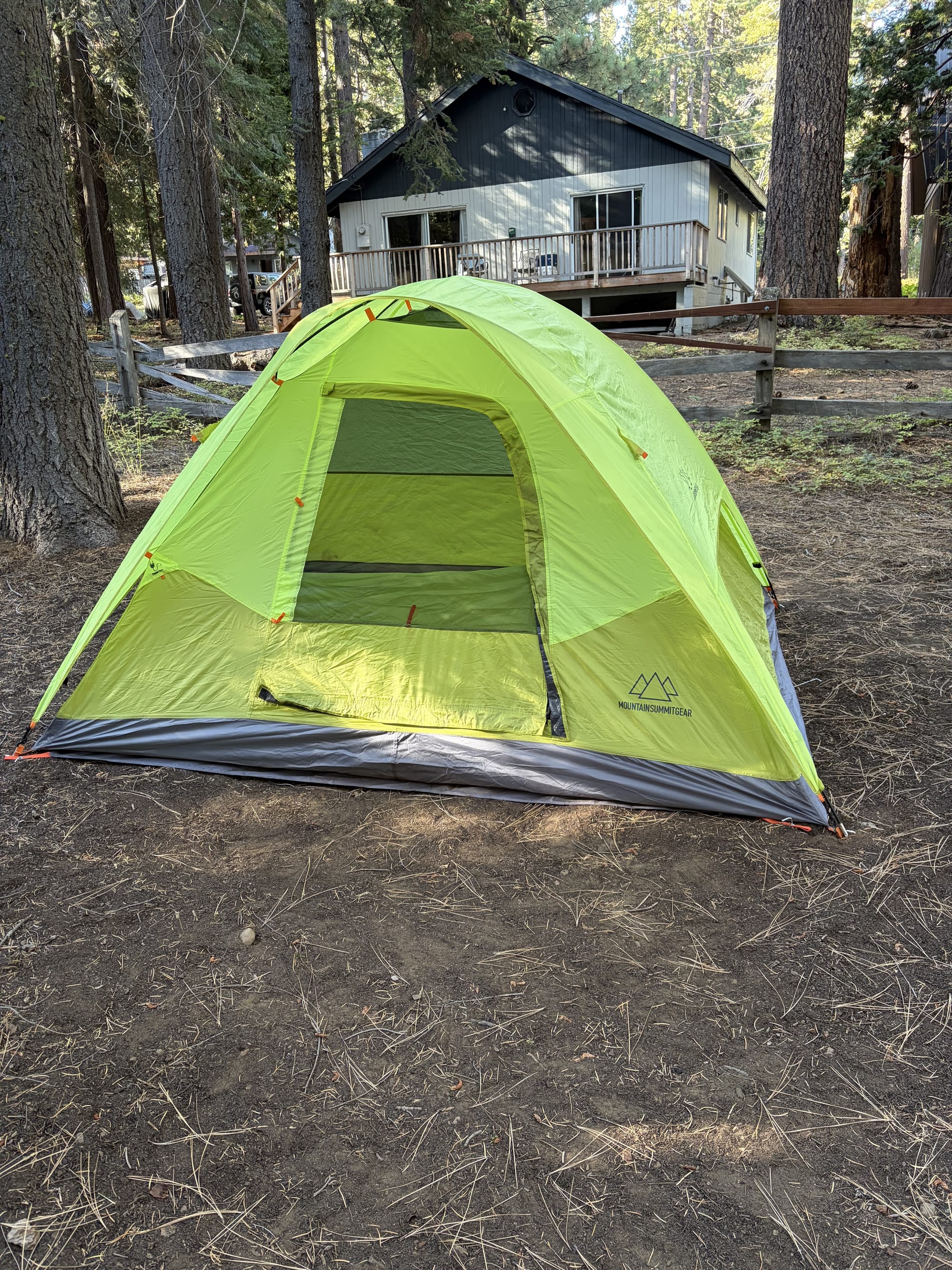
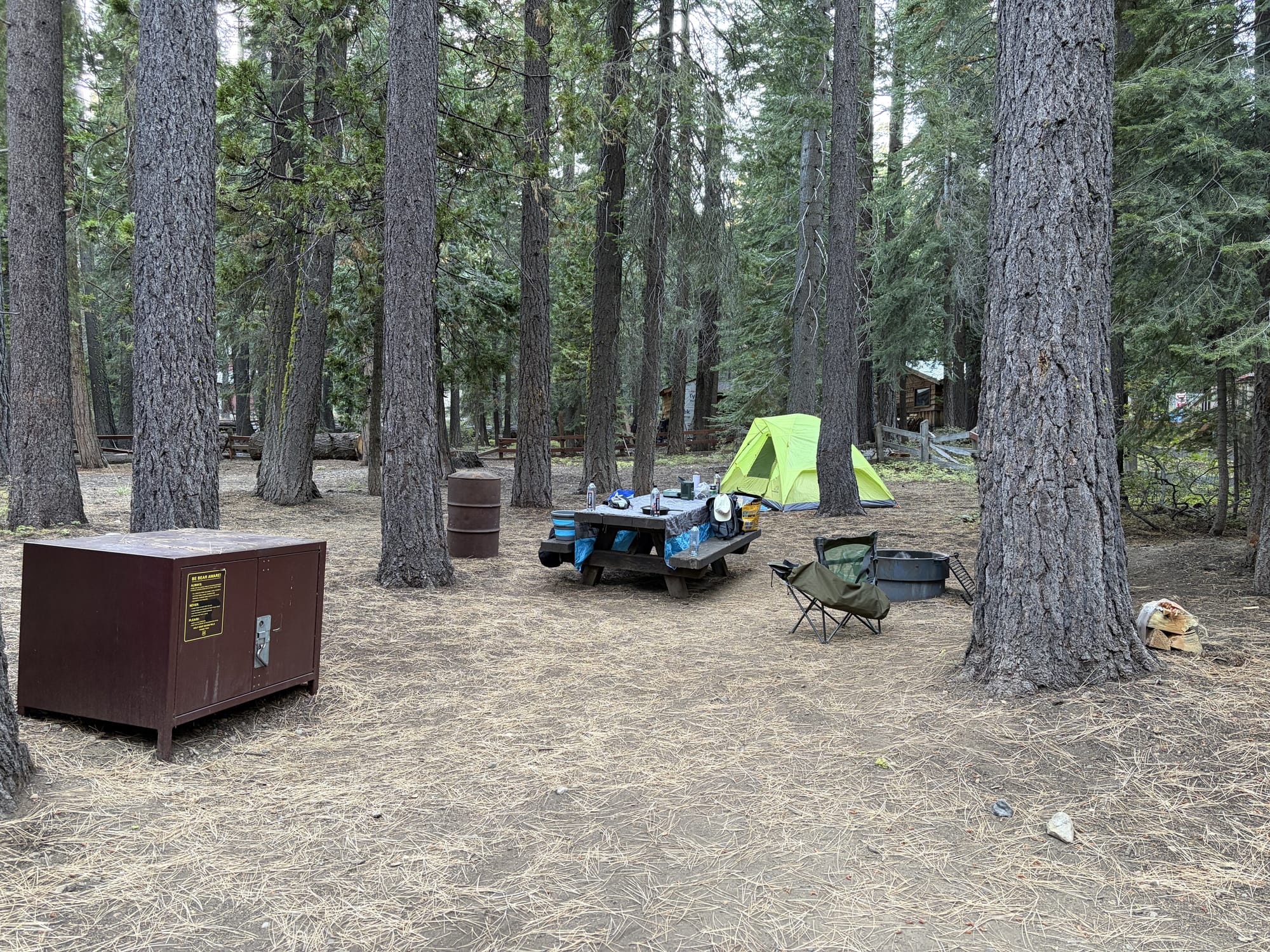
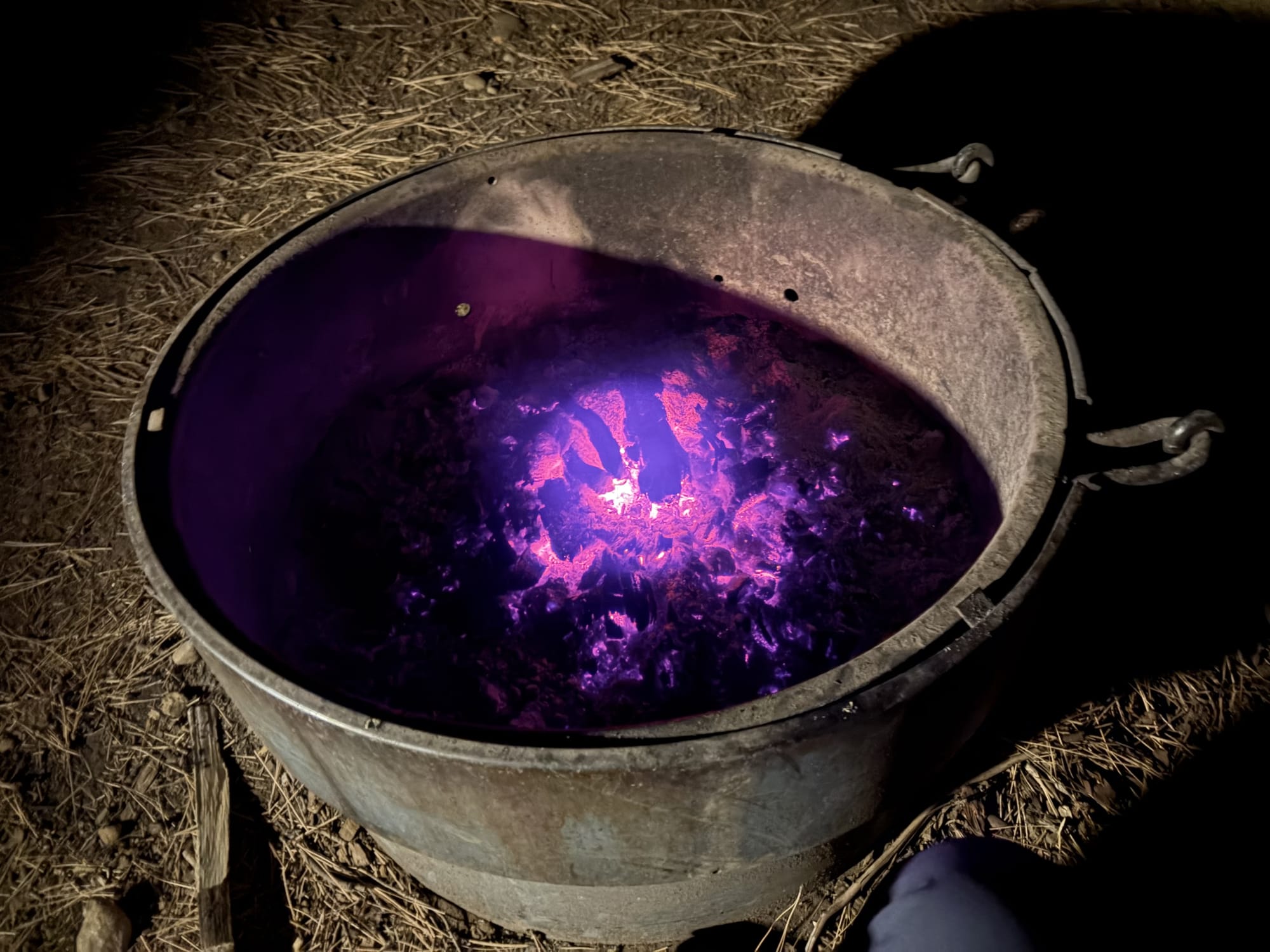
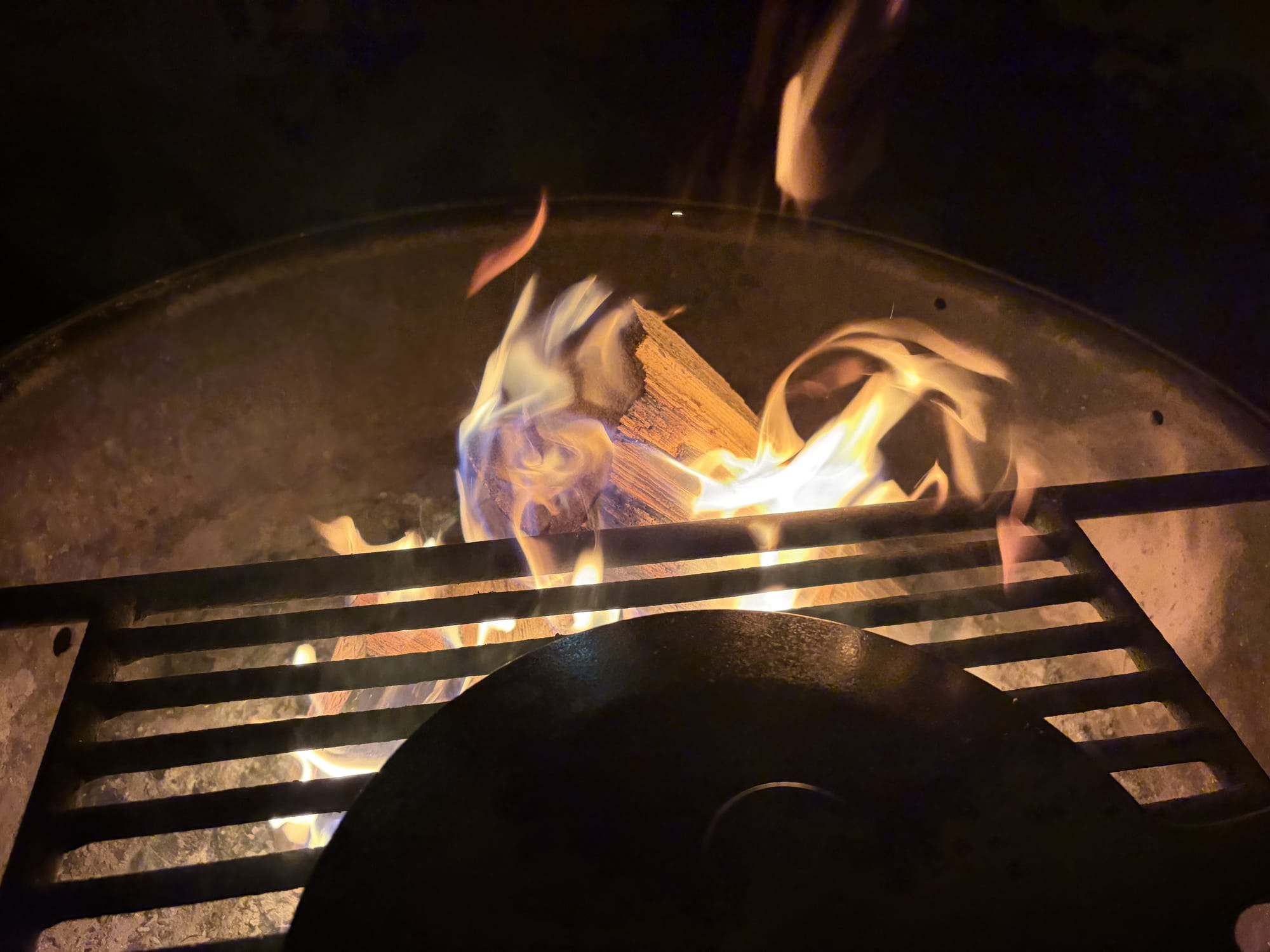
Besides sandwiches, I finally got the pleasure of cooking over the fire with a cast iron skillet—and I must say, this is living. My only complaint about camping was that I eat slow and the food gets cold fast. I don't mind sleeping on the ground in a sleeping bag, I don't mind the lack of showers, I don't even mind the bugs or bears. But hot food is a necessity. I made a big pot of noodles with some spaghetti sauce (thanks Claude the LLM for the recipe and Luigi the human for the hint to use carrots), and created a diabolically good concoction. And it stayed warm for like 30 minutes while I ate in the majesty of nature's grace. For breakfast, I threw eggs, bacon, hash browns, and toast into a skillet and called it good (it was good).
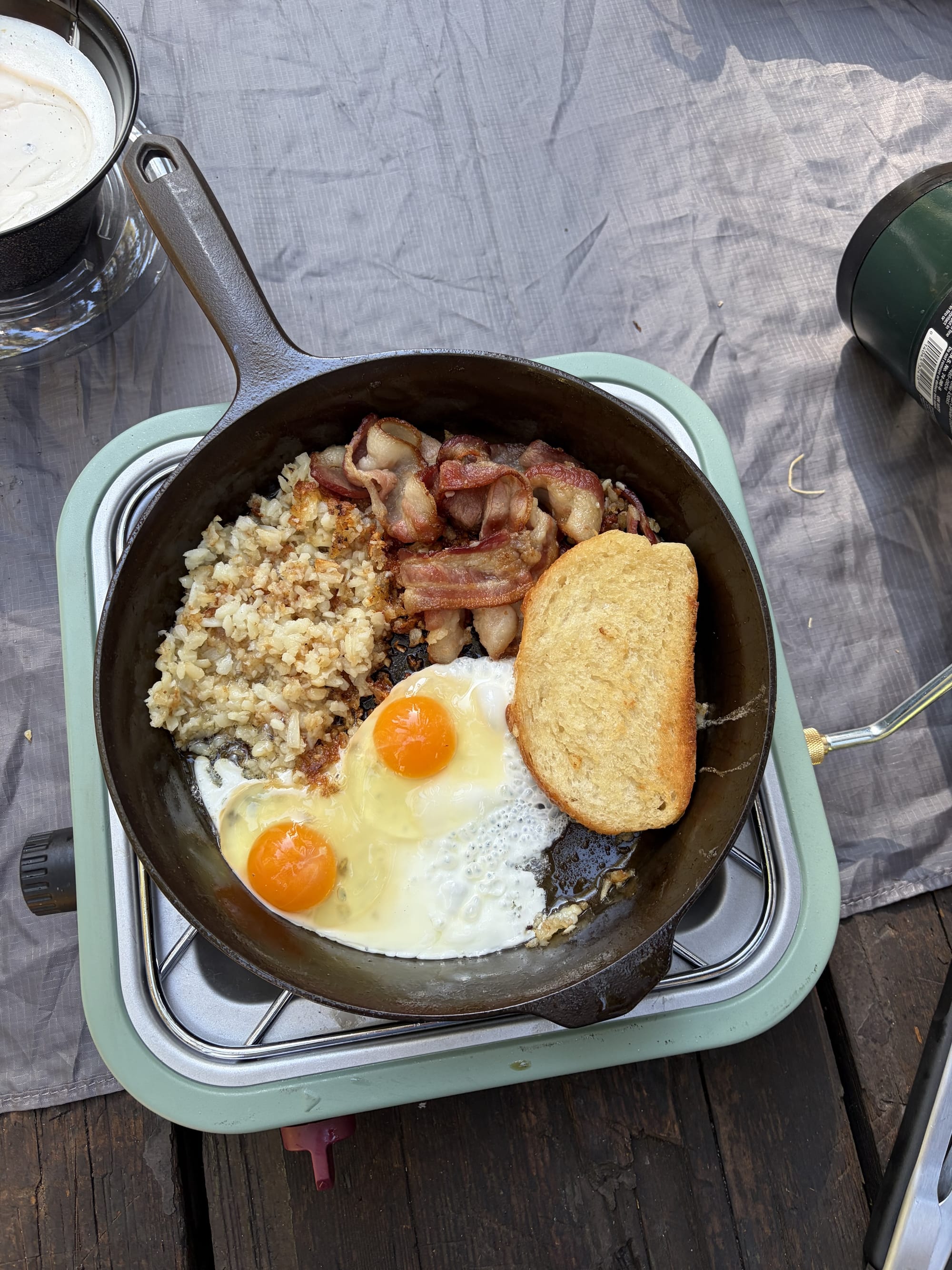
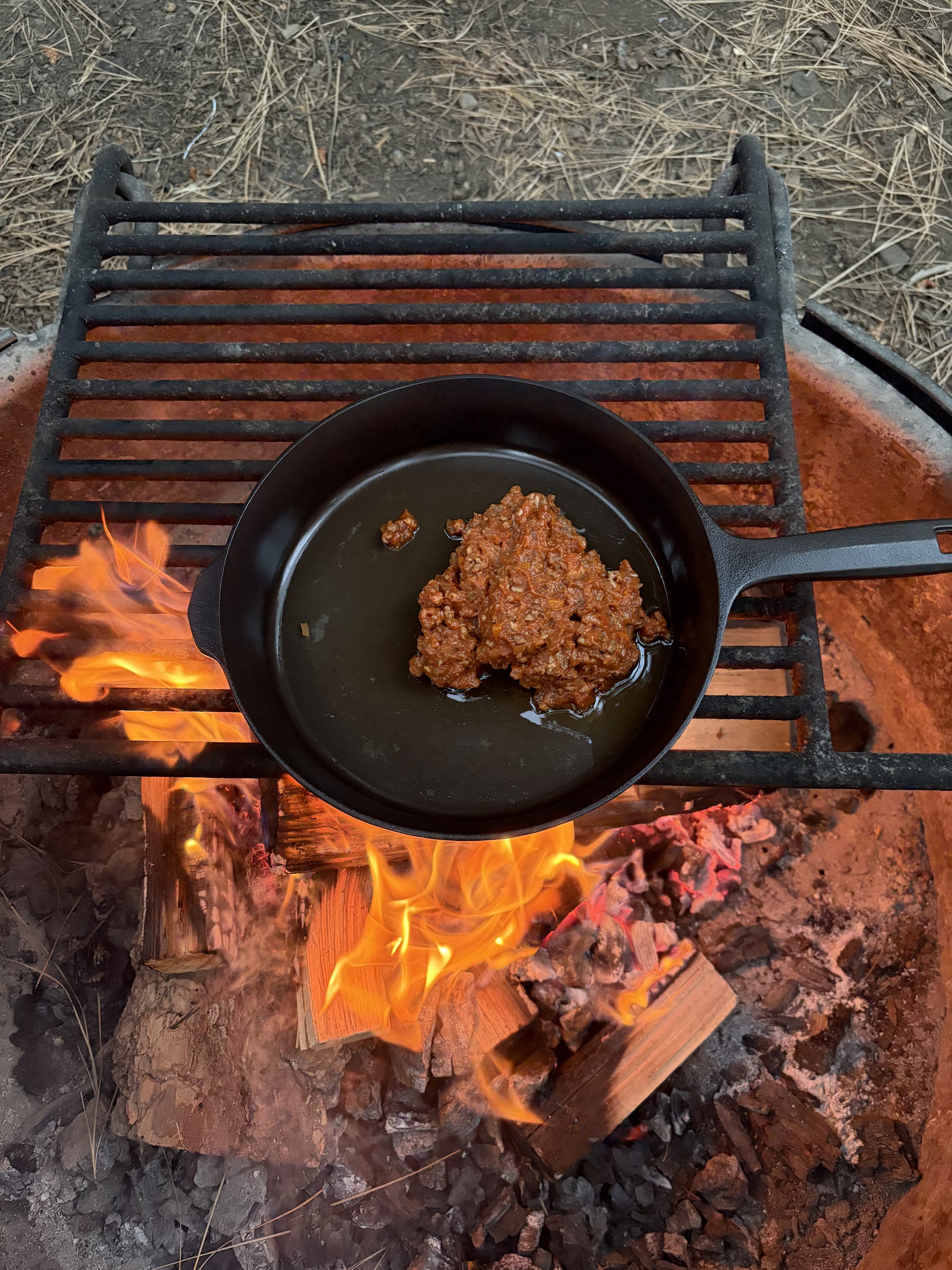
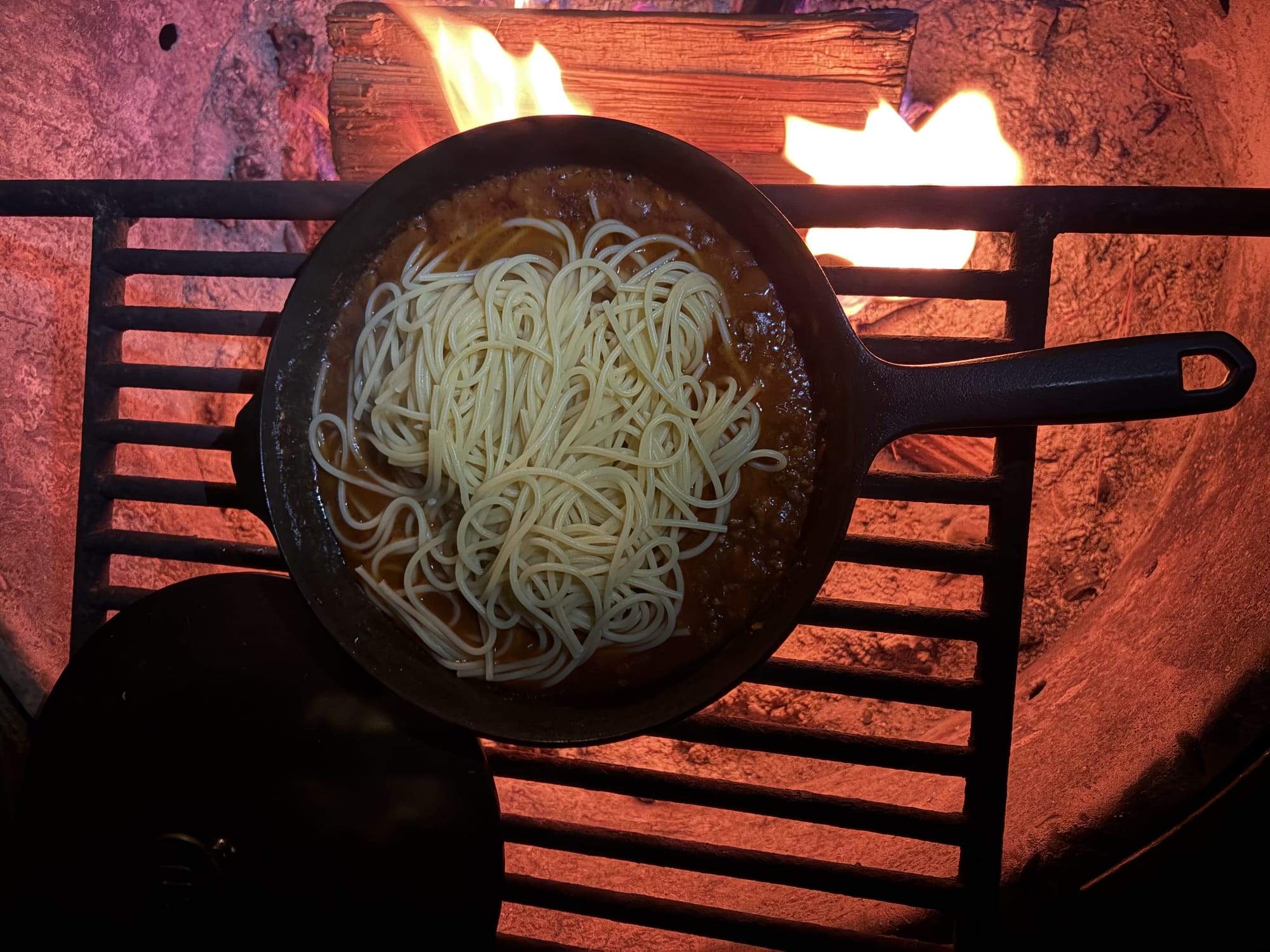
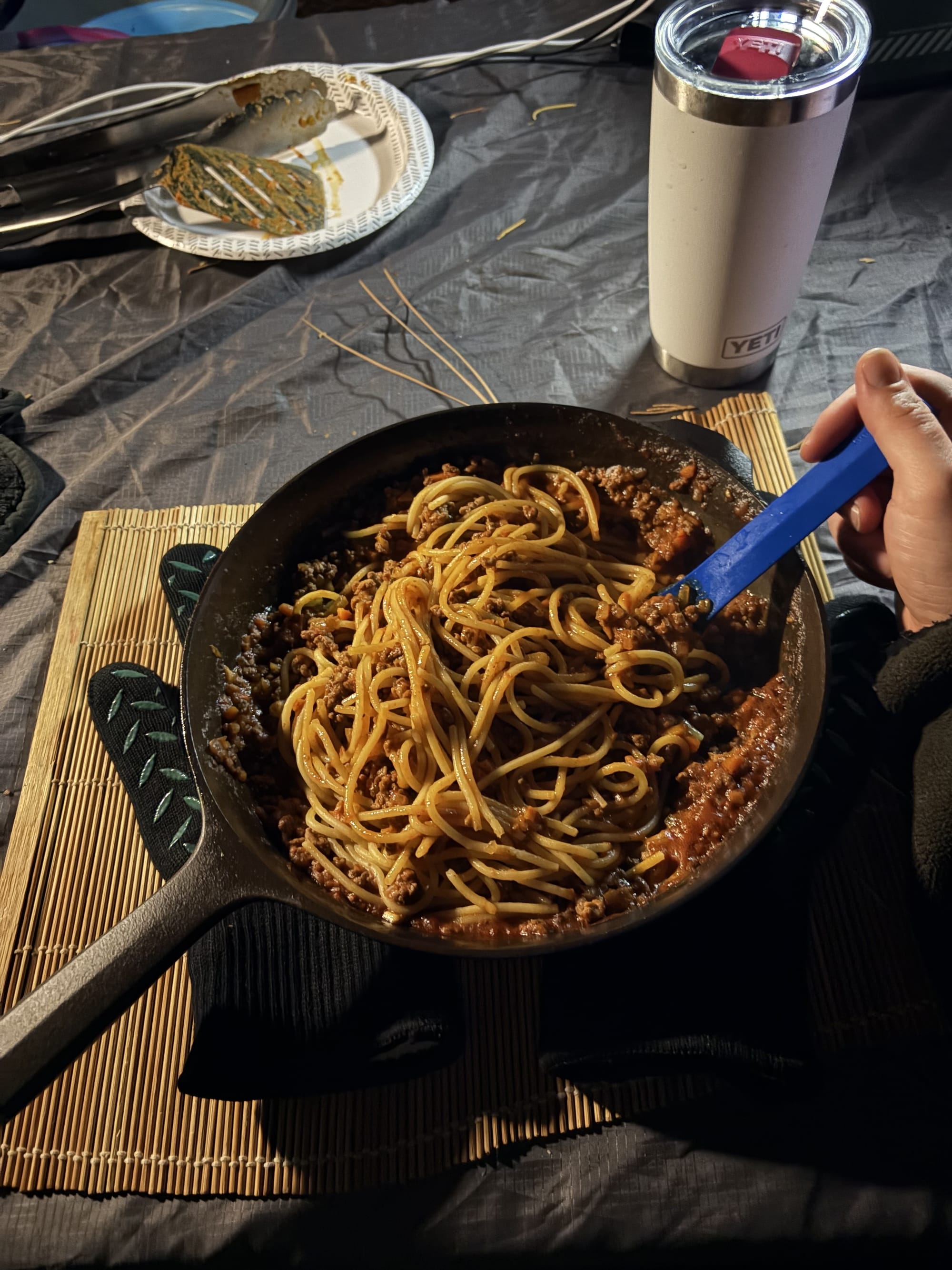
While I was only spending Friday through Sunday, I wanted to make the most of it. I went to bed early for myself (midnight) and woke up quite early (09:00) to get an early rise on the day. I never really touch my phone unless it's for my camera during camping, and this was much of the same. I solely use my Kobo e-reader—this time it was Dragon Ball manga and Game of Thrones: Clash of Kings.
I also managed to get a hike in on the Stanford Rock Trail. Again, my dumbass didn't realize that hiking a bike "rock trail" was going to be rough, but my feet were raw by the time I got back to my site. But I did manage a modest:
- 3h 35m
- 13.42km (8.3mi)
- 1,755 calories
- 1,014ft elevation gain (309m)
- 331 flight of stairs equivalent
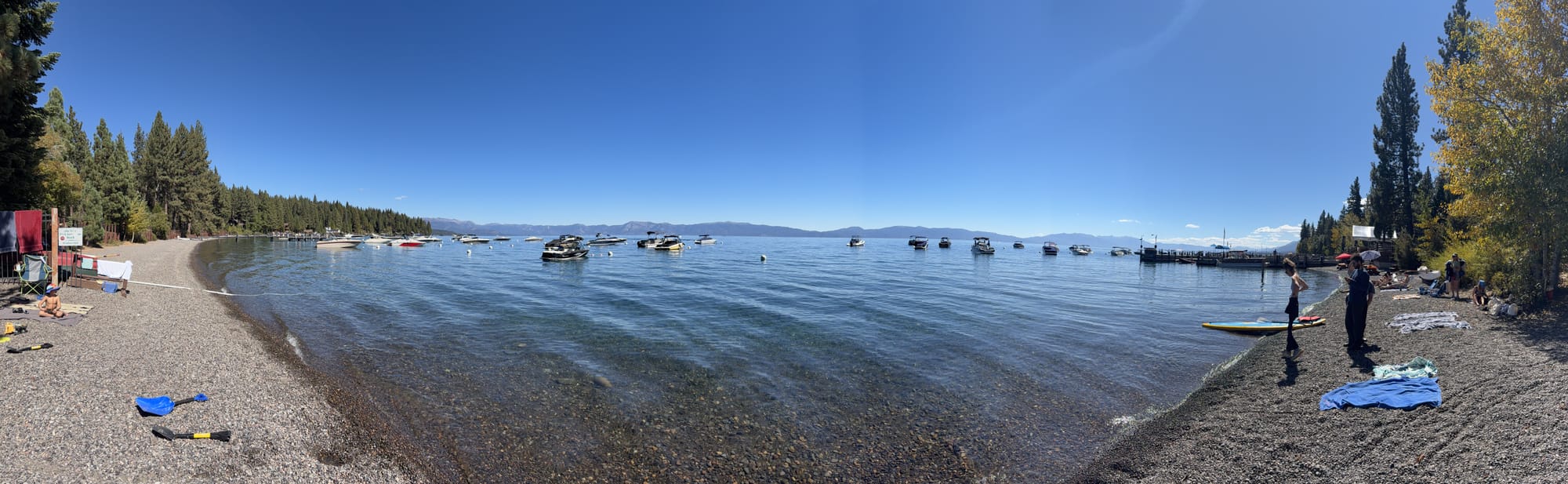
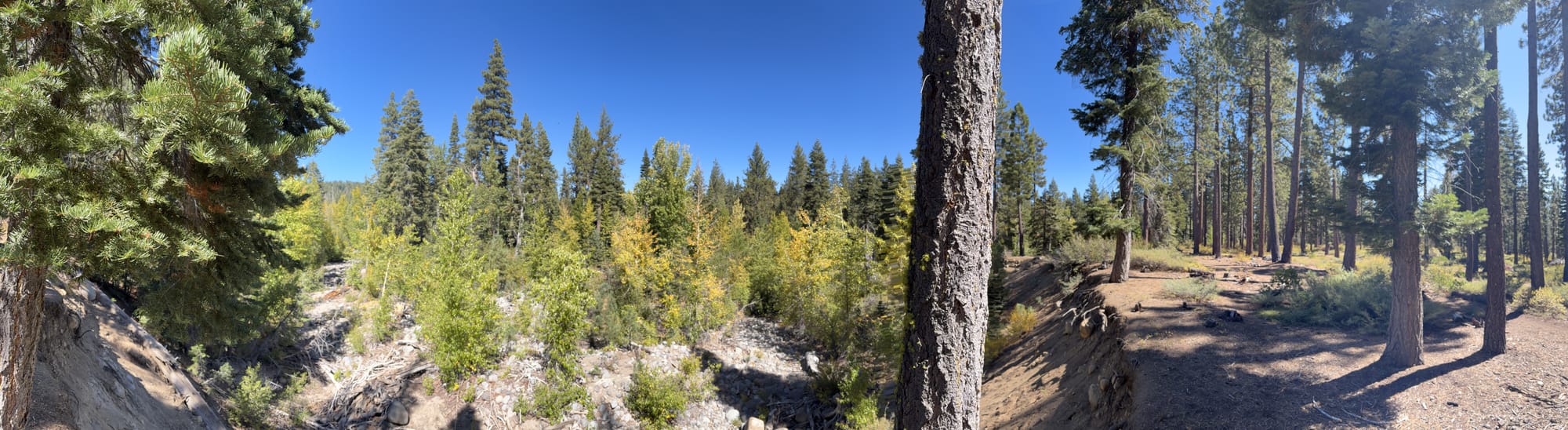
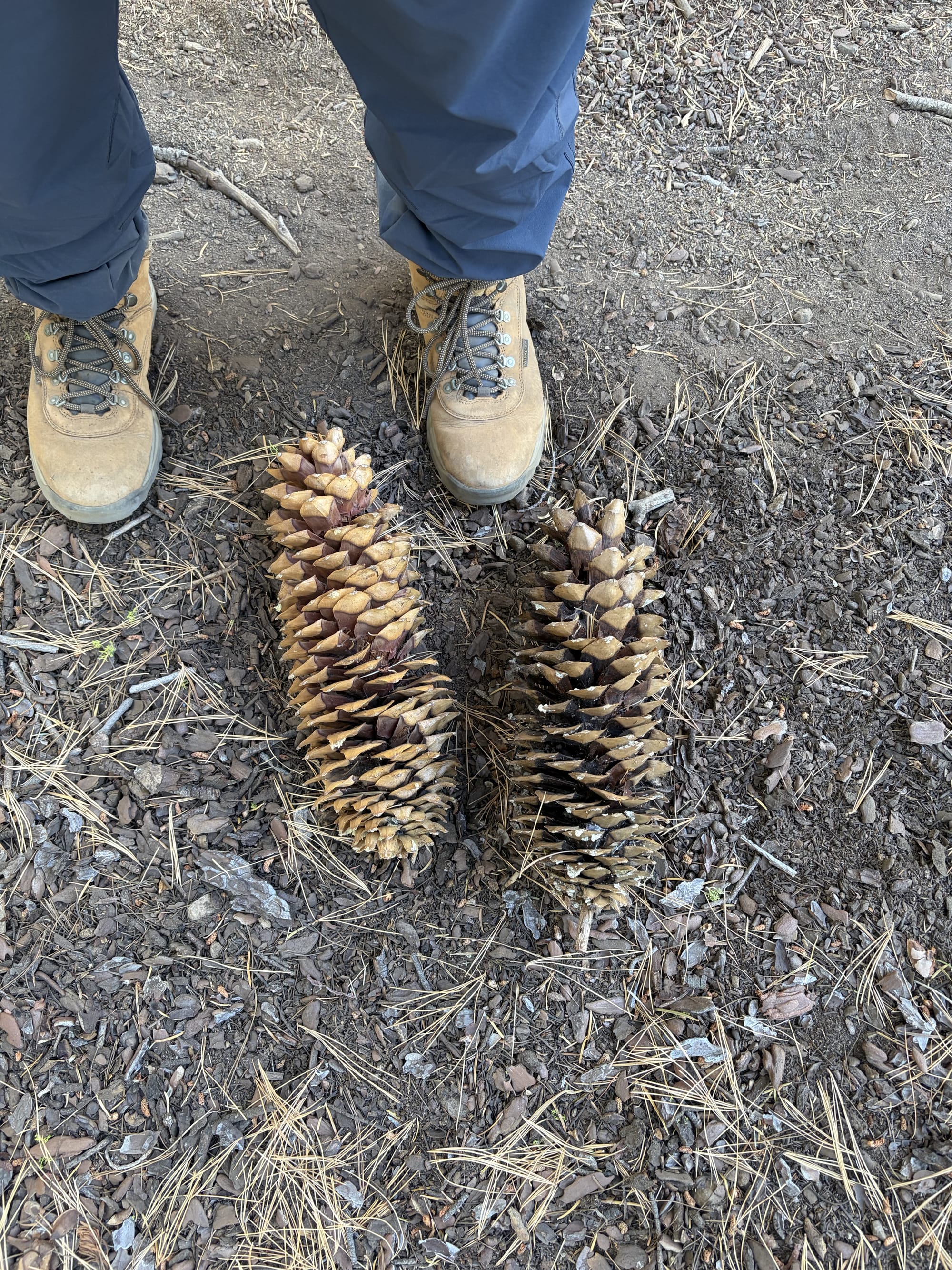
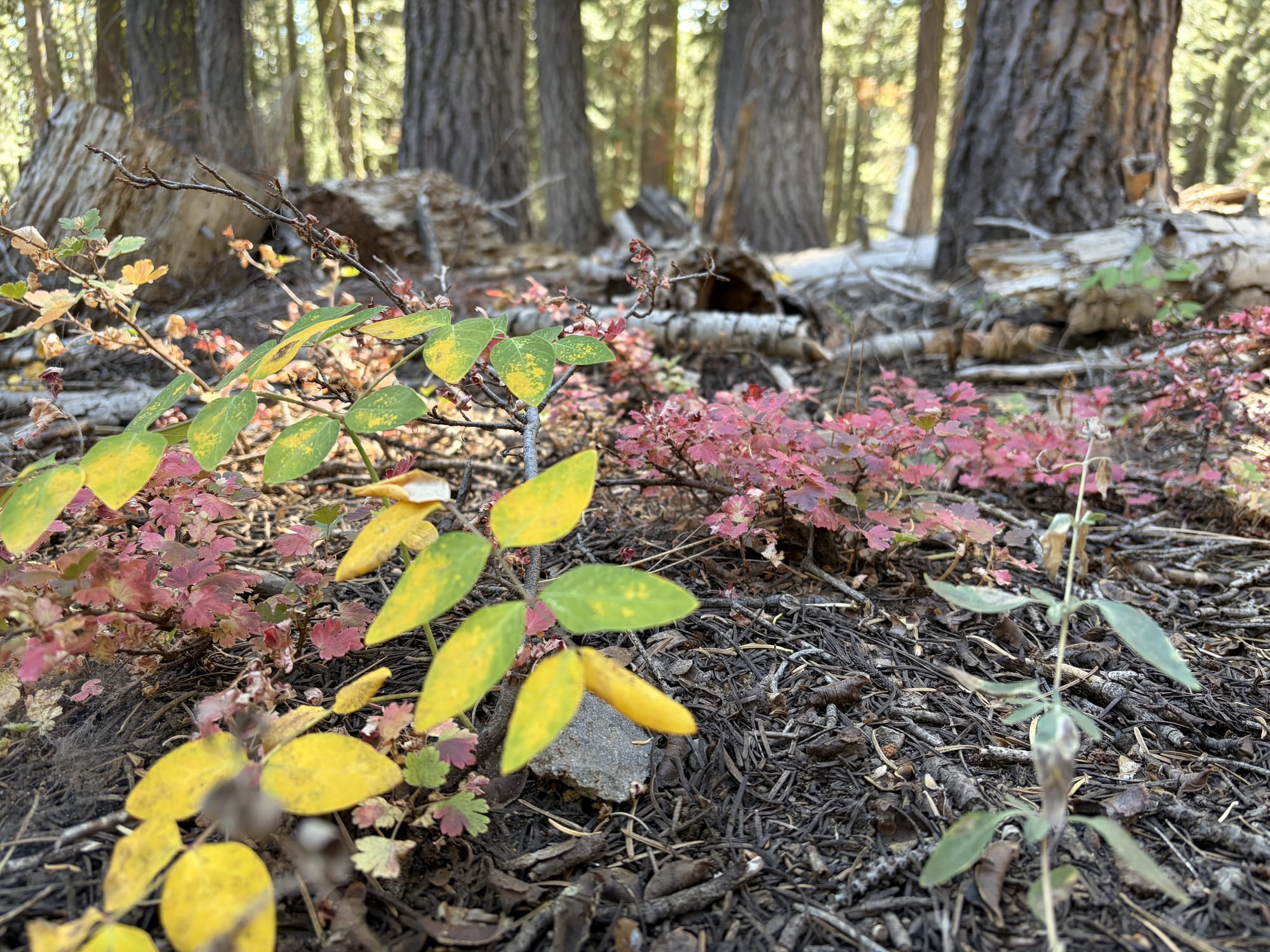
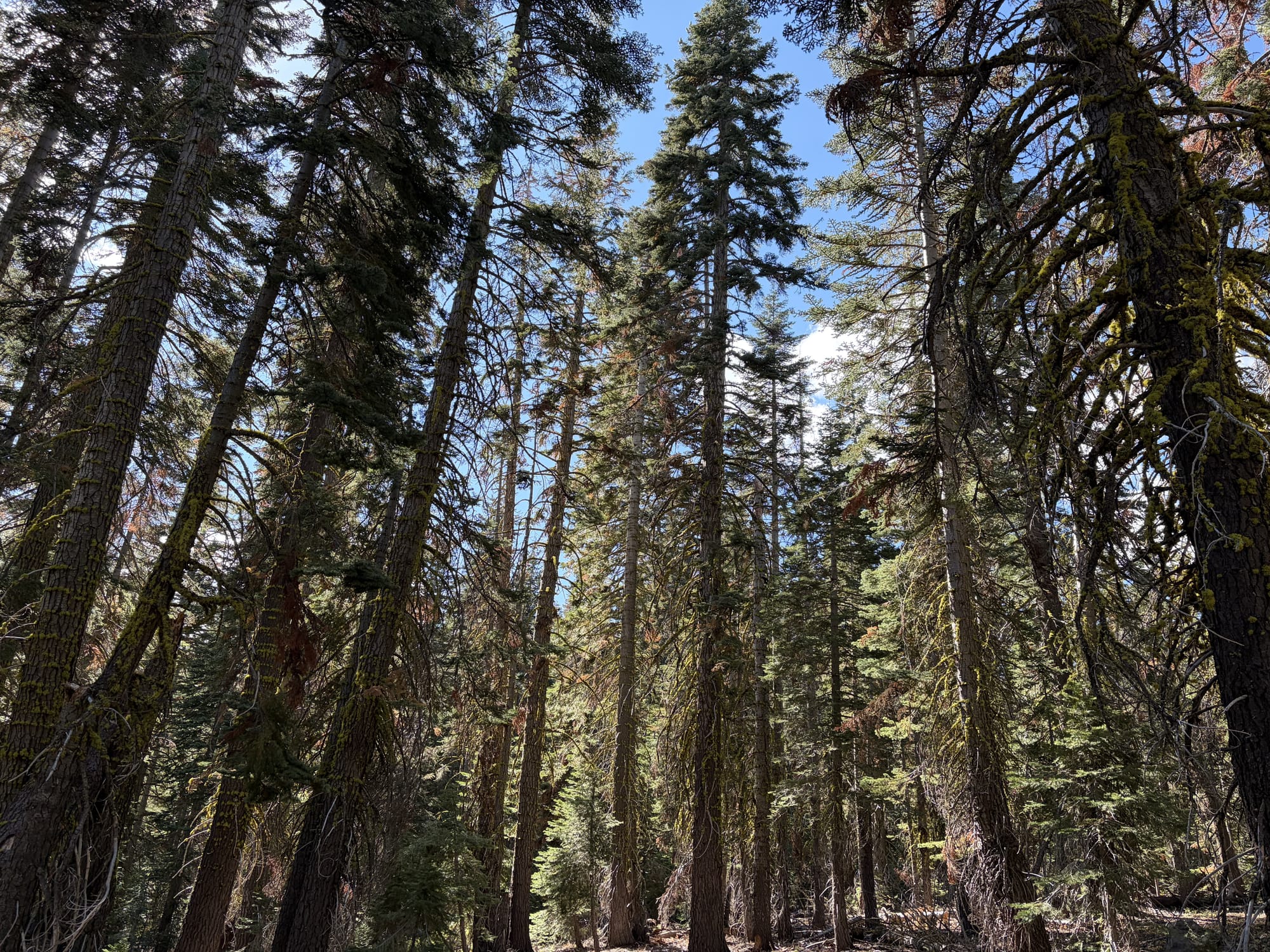
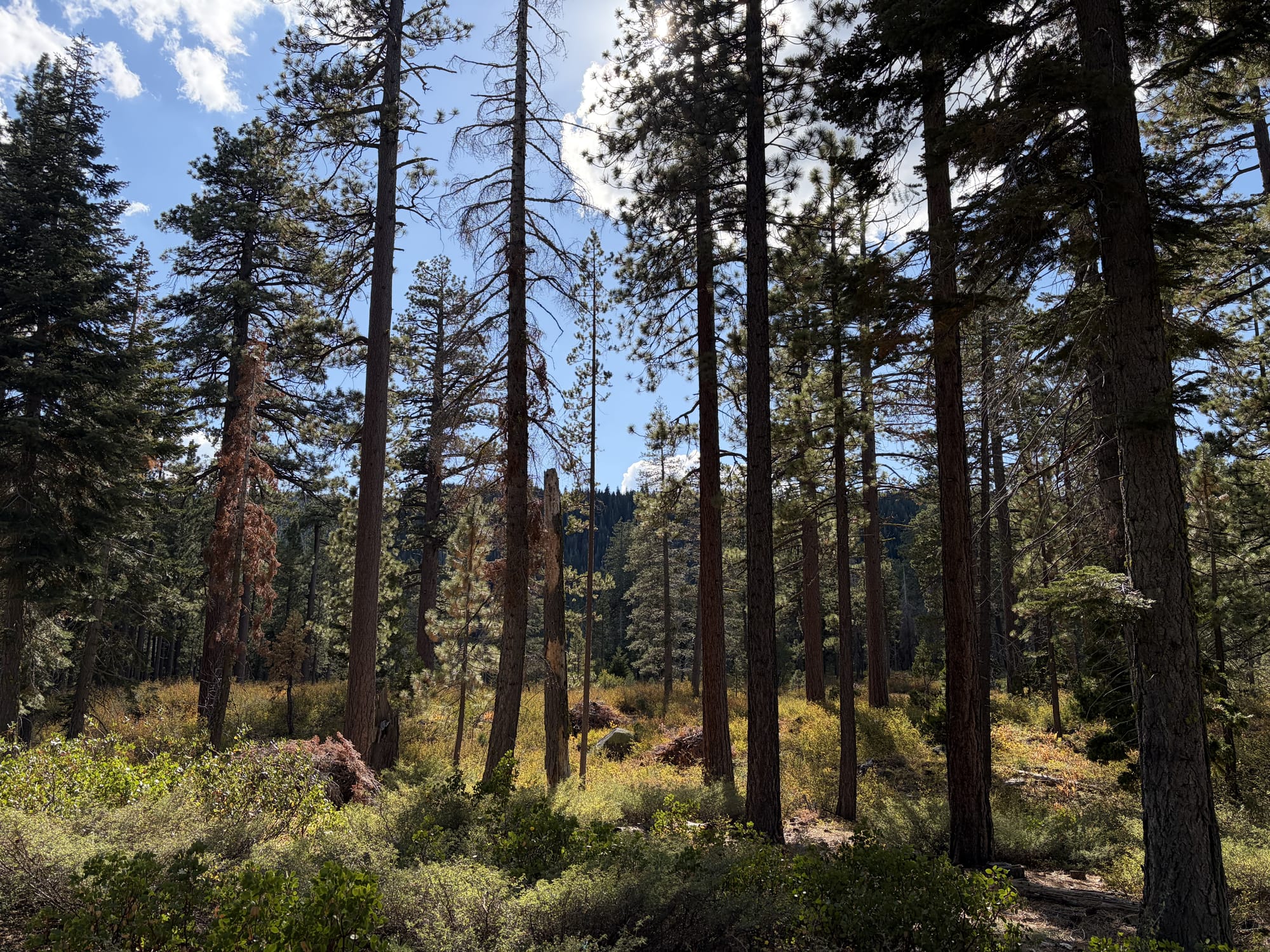
On Sunday, I had to depart. After one last 1,000-calorie cast iron breakfast and some time of silence, I was back on the road for home. It's interesting how 70 hours of camping can give you the same sad feelings of leaving as a whole week or two-week vacation. Maybe that's the thing about nature—it doesn't count time in hours or days, but in moments where your mind finally stops racing and you remember what quiet actually sounds like.
📸 Photos are courtesy of iPhone Air.

Maposaurus, Napoleon, and 327,010 Steps
Evil Maposaurus prepare to meet your doom. Our hero has the power, glovebox is your tomb. Grab your Garmin take on the world.
The year is 2007: the iPhone launches, The Sopranos series finale airs, and Britney Spears may or may not have hair. It’s Super Bowl XLI — the Chicago Bears vs. the Indianapolis Colts. It’s the first Super Bowl played in the rain, and we’re heading into halftime with the Bears only down by two. Sadly, they would never recover. And the world would never recover from one of the greatest commercials of all time.
I’m talking about Maposaurus. A tongue-in-cheek homage to Ultraman, this commercial featured a befuddled driver fumbling with a giant paper map — remember those? — which bursts into life as a rampaging "Maposaurus" monster. A passerby pulls out his Garmin in-car GPS unit — remember those? — and, in true Ultraman fashion, transforms into a laser-shooting hero and defeats the beast. There’s even a sick rock soundtrack to go with it.

Evil Maposaurus, prepare to meet your doom.
Our hero has the power, glovebox is your tomb.
Grab your Garmin, take on the world.
Grab your Garmin, every boy and girl.
GPS, power, space, and truth.
MP3, traffic alerts, Bluetooth.
The champion of personal navigation. Garmin.
This commercial would go on to receive critical acclaim — and how couldn’t it?
Garmin returned the next year with another clever concept: Napoleon. Racing a red sports car through modern-day Paris, he relies on his trusty Garmin to guide him to battle. When the car screeches to a halt at its destination, Napoleon leaps out expecting war glory — only to be met by his troops presenting him with a small white pony instead of an army. I guess the joke is: even history’s greatest general can’t tell where he is without GPS.

While Napoleon didn’t receive quite the same praise as Maposaurus, both ads are emblematic of Garmin’s cultural moment — the undisputed leader in in-car navigation. When I told people I worked at Garmin, the #1 response I got was: “The car GPS thing?” Another industry, turned into an app on your home screen.
I first saw Maposaurus during my second internship at Garmin, thanks to my then-mentor Alex. I carried that lore with me into my first full-time job the next year. When it came time for the annual corporate walking/step challenge, I already had the perfect team name: Maposaurus. Then I walked like the glovebox depended on it.
Maposaurus finished top 5 of more than 40 teams, and I came in #16 out of 200+ individuals on a leaderboard that clocked me at 316,423 steps. My own Health app, counting every step, says 327,010 across those 18 days, February 18 to March 7, 2019. The day-by-day:
The official tally, for the record:
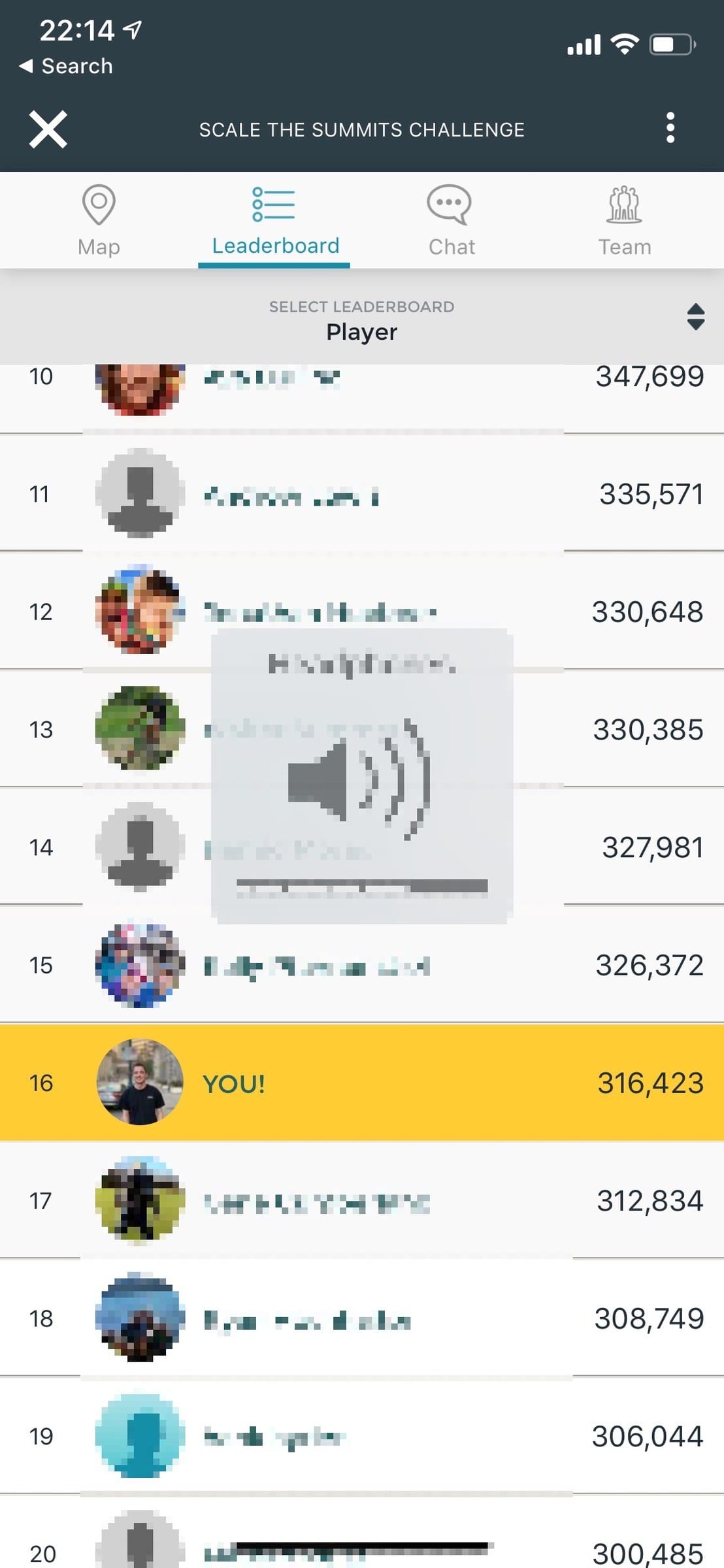
By the end of the competition, others were inspired — and even copied our headers!
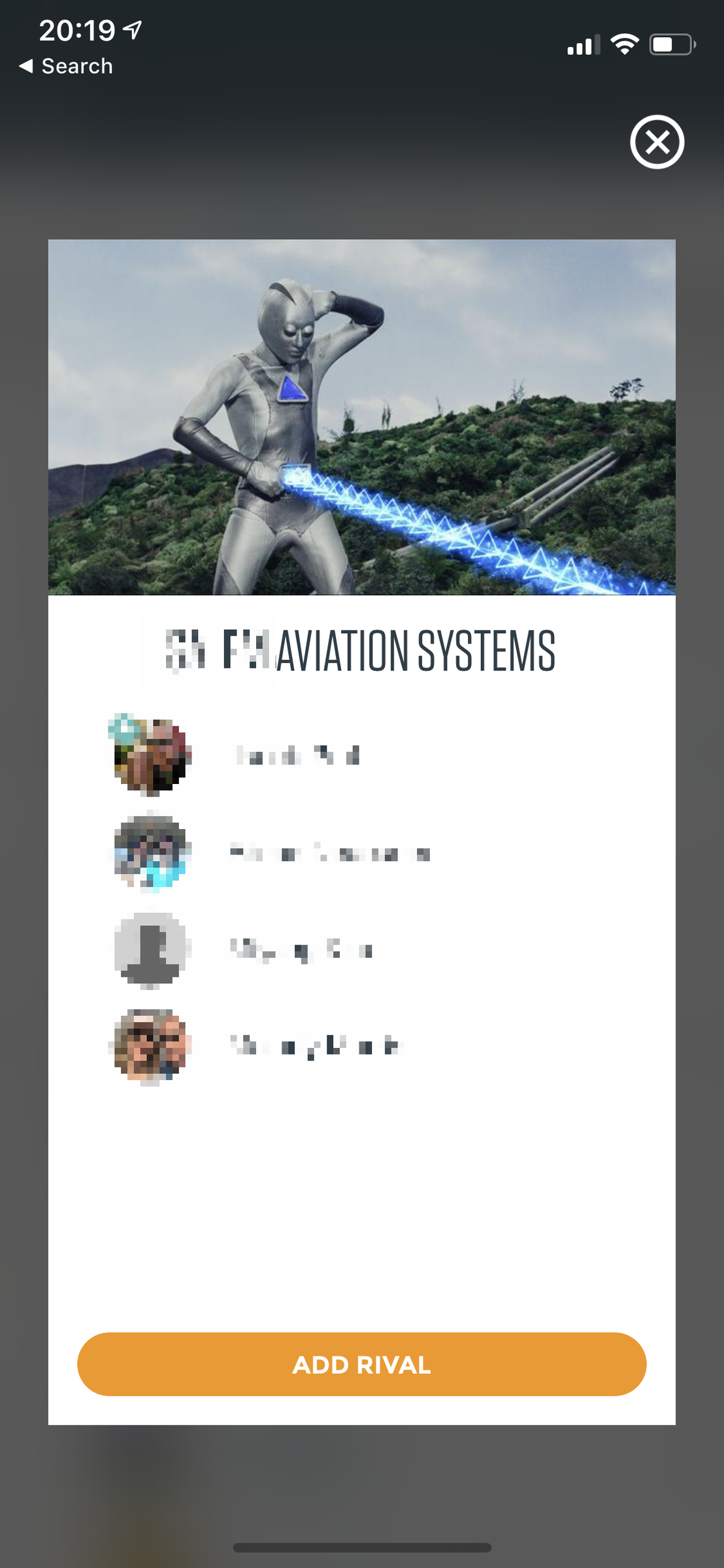
The best part: it wasn't just a contest-week spike. I averaged over 17,000 steps a day across the eight weeks from mid-February to mid-April.

Bookmarked Books
So many books, so little time.
The following are my favorite books I’ve read. I’ve added them here in the hopes you might like some of them too. For a full list, check out my Goodreads.
Fiction
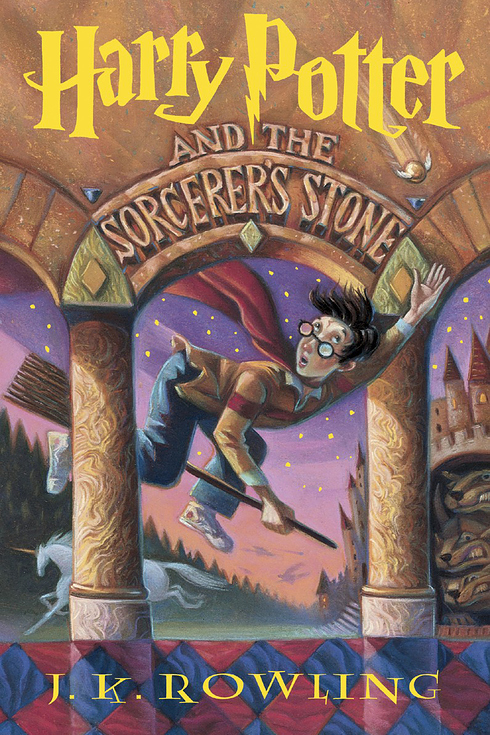
- The Harry Potter series 1 2 3 4 5 6 7
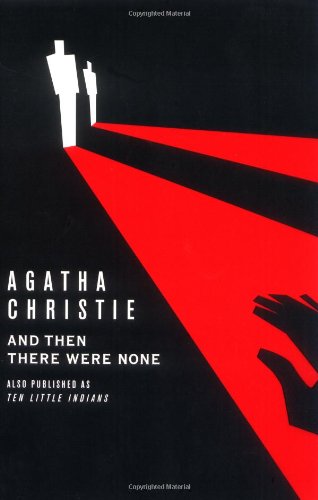
- And Then There Were None
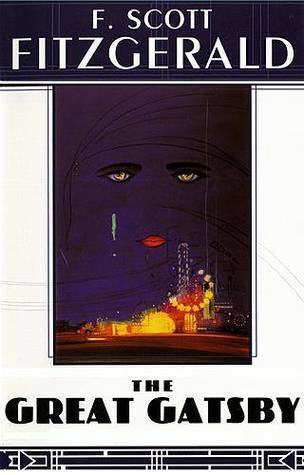
- The Great Gatsby
- Treasure Island
Non-Fiction


- Red Famine: Stalin's War on Ukraine
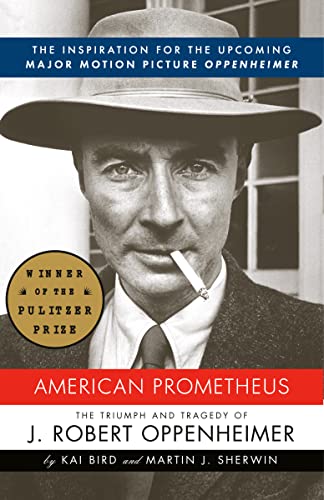
- American Prometheus
- Getting Things Done: The Art of Stress-Free Productivity
- I'm Glad My Mom Died
- Kitchen Confidential: Adventures in the Culinary Underbelly
- The Antidote: Happiness for People Who Can't Stand Positive Thinking
- The Gates of Europe: A History of Ukraine
- Masters of Doom: How Two Guys Created an Empire and Transformed Pop Culture
- The Hidden Brain: How Our Unconscious Minds Elect Presidents, Control Markets, Wage Wars, and Save Our Lives
- Hold Me Tight: Seven Conversations for a Lifetime of Love
- How Google Works
- The Theory of Poker: A Professional Poker Player Teaches You How To Think Like One
Textbooks
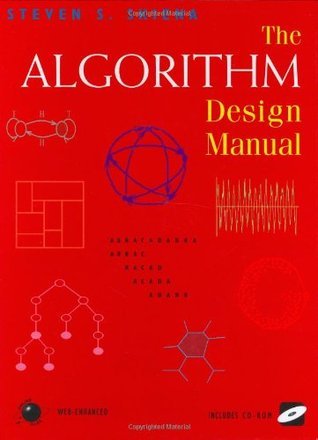

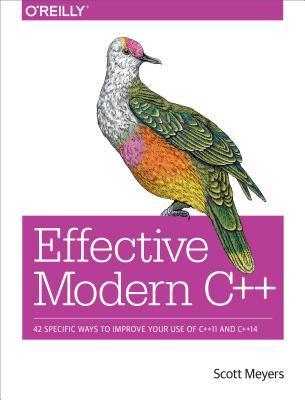
Hello👋 I’m Illya Starikov. Welcome to my personal blog.
Over the years, I’ve made many iterations of blogs. Blogs about Apple, technology, programming, portfolios, entertainment. This one is just about me.
My interests, that I will likely write about, include:
- Cats
- Programming
- Technology
- Traveling
- Video games
- Running, lifting, basketball
- Photography
Hope you enjoy!
There is no greater agony than bearing an untold story inside you. Maya Angelou